
Lesson 11 of 13
Download and share
PDF and PNG floor plans, Outputs, and Appraise-It Pro.
2 min read
You can download the floor plan as a print-ready PDF or as PNG images, and a UAD 3.6 scan can go straight to Appraise-It Pro. Everything for one property is listed under Outputs on its Overview tab.
Download the floor plan
- Open the scan and click Download at the top right (on any tab).
- Choose PDF for all pages in one print-ready file, or PNG for a .zip of page images.
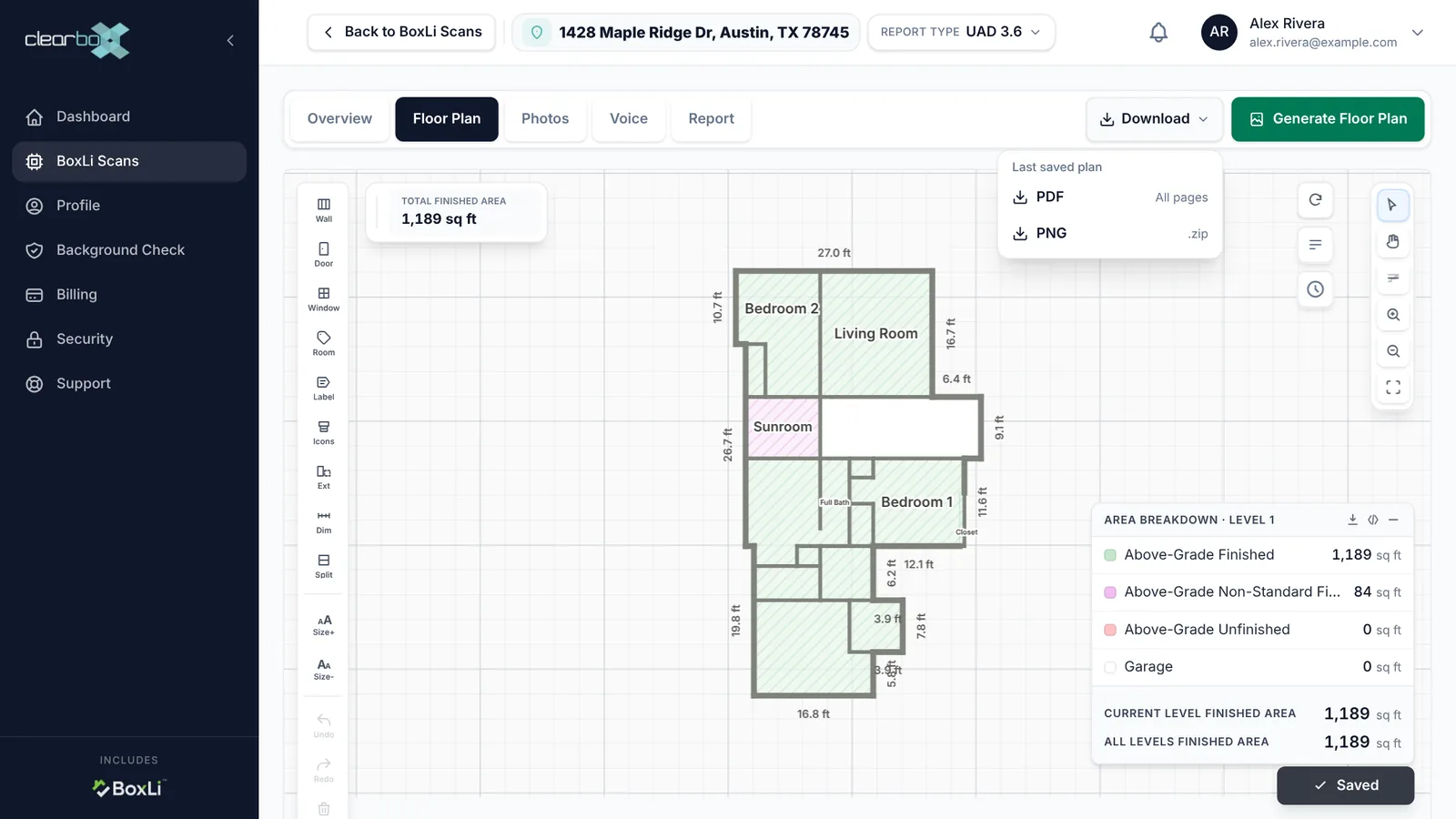
Downloads always use the last generated floor plan. If you've edited the plan, click Save changes and then Update Floor Plan first. If Download is greyed out, no floor plan has synced from the phone yet.
Everything in Outputs
On the Overview tab, Outputs links to each file:
| Output | Where it lives |
|---|---|
| Floor Plan PDF & PNG Pages | The Floor Plan tab |
| Appraise-It Pro File (.rpti) | The Report tab, built from the live UAD 3.6 form (UAD 3.6 scans only) |
| Measurement Report | The Report tab's More Actions |
| Other Data | RoomPlan and LiDAR files, such as the 3D model |
Export to Appraise-It Pro (UAD 3.6)
From the dashboard:
- Open the scan's Report tab.
- Click Export, then Export to Appraise-It Pro.
- Open the downloaded file in Appraise-It Pro. Send History lists what was sent and when.
From Appraise-It Pro: open the BoxLi panel on an order, sign in with your BoxLi login, and send your scans in.
Download the ZIP or the PDF
On the Report tab, click Export:
- Download ZIP saves the same package as a .zip file: Report.xml and an Images folder.
- Download PDF opens the print view. Choose Save as PDF in the print dialog.
From the phone
On a Floorplan & Photo Manager property, tap Export at the bottom of the property's Structures tab to share the PDF or PNG pages straight from your iPhone.
Still stuck? Email support@clearbox.com.