
Lesson 9 of 13
Find your scans
The scans list, connecting your phone, and the scan workspace.
Video 1:36 · 2 min read
Every property you scan in BoxLi syncs to BoxLi Scans on the Clearbox dashboard, newest first. Sign in at www.clearbox.com with the same account you use in the app.
Open your scans
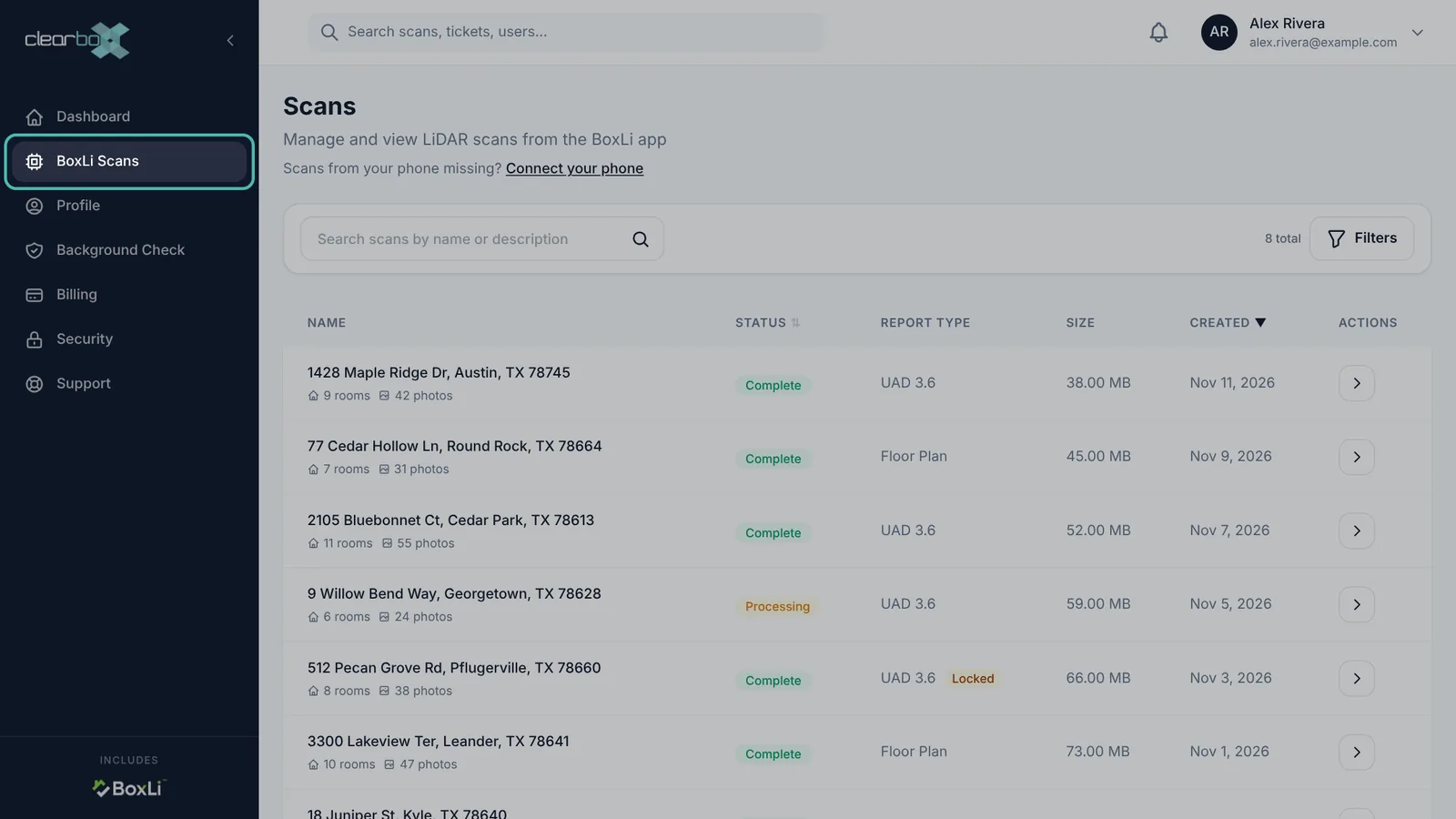
Click BoxLi Scans in the left menu. Each row shows the address, the rooms and photos captured, the status, the report type (Floor Plan or UAD 3.6) and when it was created.
Find a property
- Type part of the address in Search scans by name or description.
- Click Filters to narrow by date (Specific Date, Year to Date, This Month, Last Month, Custom Range) or status (Pending, Processing, Complete, Failed).
- Click a column heading to sort by status or date.
Connect your phone
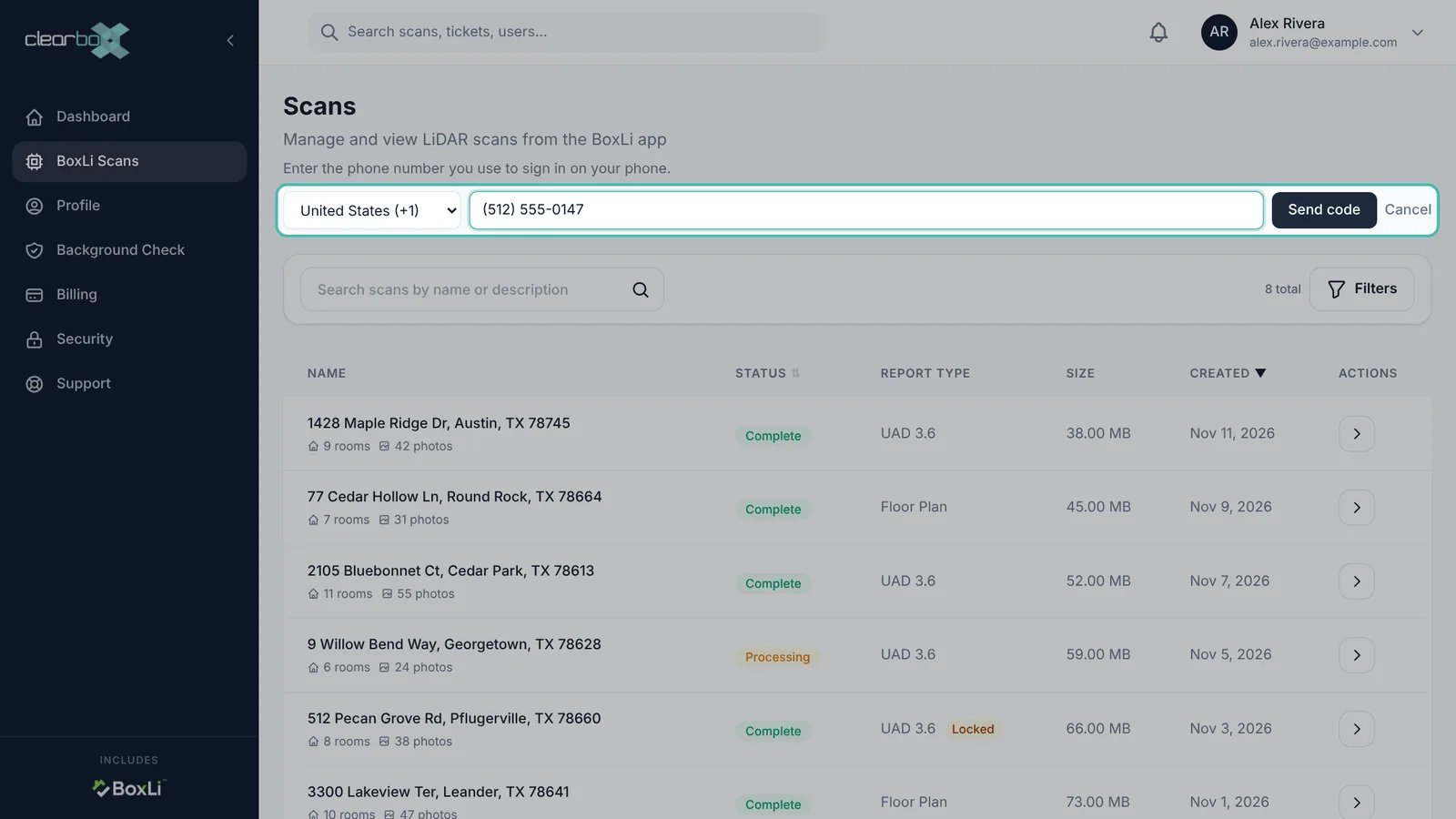
If scans from your phone are missing, link the phone number you use in the app:
- Click Connect your phone on the Scans page. It's also under Security, then Phone app.
- Enter the number you sign in to BoxLi with and click Send code.
- Type the 6-digit code from the text and click Connect.
The dashboard tells you how many scans it added, for example 3 scans added to your account.
The scan workspace
Click a property to open it. The tabs across the top are:
| Tab | What's there |
|---|---|
| Overview | Finished area, total building area, levels and rooms, and Outputs (every file for this property) |
| Floor Plan | The plan editor and the ANSI area breakdown |
| Photos | Property photos. UAD 3.6 scans show the UAD 3.6 photo board |
| Voice | Voice notes and the walkthrough transcript (transcript text is for Enterprise users) |
| Report | The UAD 3.6 form. Locked on Floor Plan scans |
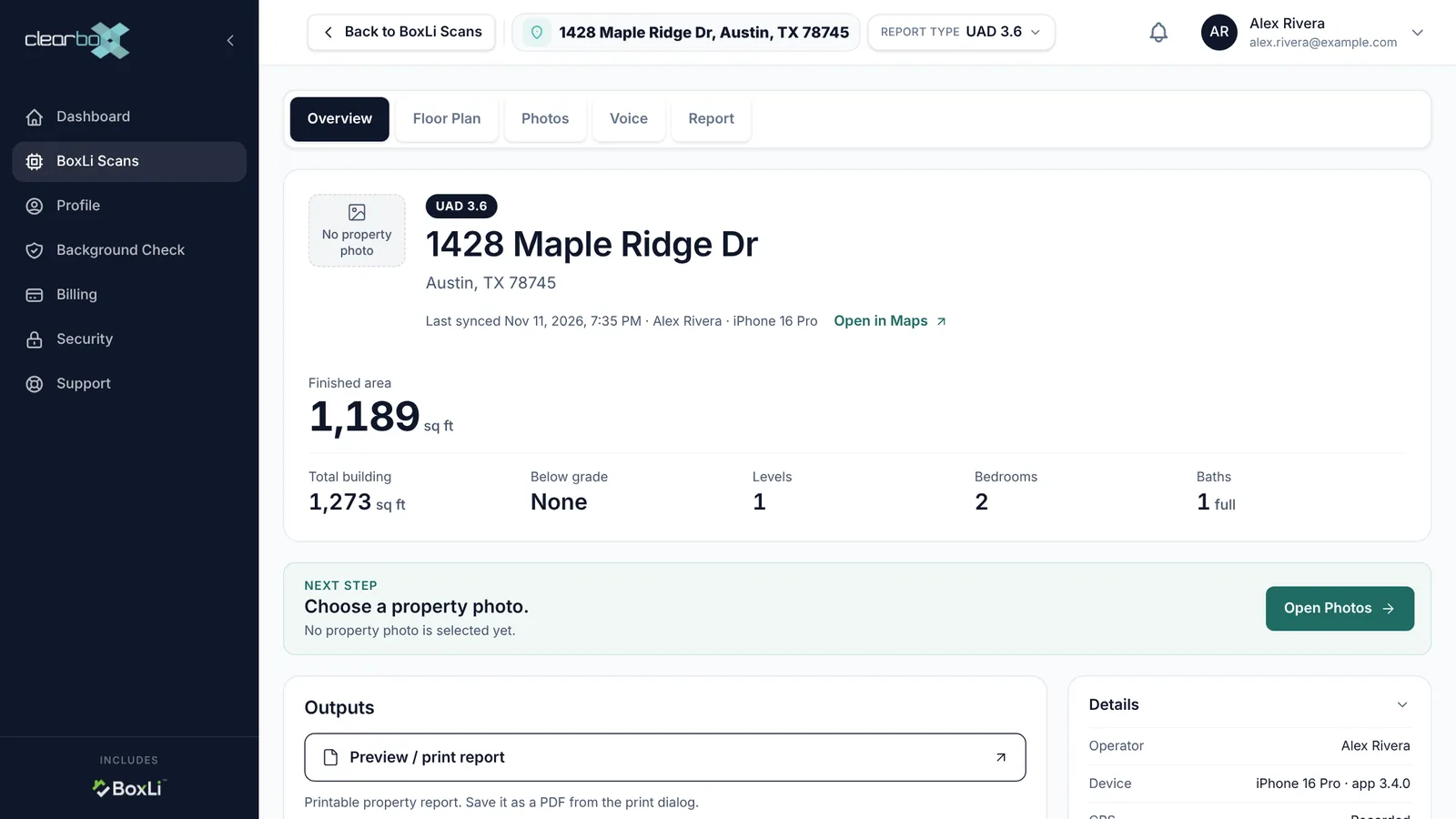
The Report type control in the header switches a scan between Floor Plan and UAD 3.6. See UAD 3.6 report and credits.
Still stuck? Email support@clearbox.com.